




Frequently Asked Questions
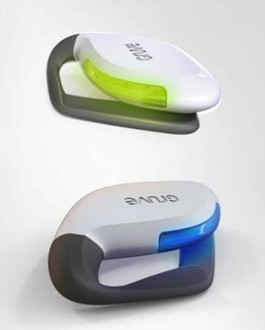
Gruve and Gruve Online
Q:
How do I charge my Gruve?
Q:
Is the Gruve
waterproof?
Q:
How do I sync my
Gruve?
Q:
What do the
different colors on the Gruve and Gruve Online mean?
Q:
How do I see the
color zone on my Gruve?
Q:
How is my Green
Goal set?
Q:
Why does my Gruve
vibrate sometimes?
Q:
How can I tell if
my Gruve’s battery is low?
Q:
What computers
are compatible with the Gruve?
Gruve Coaching
Q:
What is NEAT?
Q:
What is RMR?
Q:
How many calories
do I need to burn to lose weight?
Q:
How can I be more
active during my day?
Q:
Why did my Green
Goal increase?
Q:
I have a chronic
condition (COPD, cardiovascular disease, high blood pressure,
diabetes). Can I still use the Gruve?
Q:
I have arthritis
and can’t walk long distances. How can I use the Gruve?
Q:
I don’t have time to work out. How can I increase my activity?
Q:
Can I wear the
Gruve when I work out?
Q:
Will the Gruve
measure weight lifting activities?
Q:
Why does my
caloric burn look low for the activity I performed?
Q:
Can I use the
Gruve with other activity and weight loss products?
Q:
The Gruve
Jumpstart Guide gives general nutritional guidelines. Where can
I find additional reliable diet and nutritional information?
Q:
Where should I
put my Gruve when cycling?
Q:
My Gruve
registers activity when I am in my car. Why? I am not doing
anything.
Q:
Who should I
contact for help with the Gruve or Gruve Online?
Troubleshooting
Q:
When I sync, some
or all of my data does not appear in my charts. What's wrong?
Q:
The belt clip on
my Gruve is broken. What should I do?
Q:
The color light
bar flashes red three times prior to displaying my current color
zone. What does that mean?
Q:
I'm in my
Assessment Week and a few of the days show zero or low caloric
burn. What should I do?
Q:
When I push the
color light bar on my Gruve, why doesn't the color on the
light bar match the
color displayed in my online charts?
Q:
How do I stop my Gruve from vibrating when I’m asleep or in a meeting?
Q:
Why doesn't the
Halo illuminate when I push it?
Q:
My Gruve doesn't
seem to be working properly. What should I do?
Q:
Why does my Gruve
blink red when I detach it from my computer?
Q:
I am in my
Assessment Week, but my Gruve Online charts and the color light
bar on my Gruve are green. Why? I do not have a Green Goal yet.
Q:
My Gruve occasionally vibrates
when I push the color light bar light bar, even when I have been
active. Is something wrong?
Q:
Sometimes when I
click on the hour bar graph there is no minute-by-minute caloric
burn data. Why?
Gruve and Gruve Online
§ Q: How do I charge my Gruve?
A: To charge the Gruve, simply plug it into a live, non-hibernating computer using a micro-USB cable. The Halo light bar will blink green while charging and will become solid green in 6-12 hours when fully charged. You received a standard micro-USB cable in your Gruve packaging, but you can use any standard micro-USB cable to charge the Gruve.
§ Q: Is the Gruve waterproof?
A: Your Gruve is
not waterproof and you should avoid getting it wet. If your
Gruve has been exposed to water and no longer functions, you
will need to acquire a new Gruve.
Note: If your Gruve has water damage within 30 days of purchase,
you can buy Gruve Insurance to receive a replacement Gruve.
Contact Customer Care at
[email protected]
for more information.
§ Q: How do I sync my Gruve?
A: Make sure that
you've downloaded the synchronization application to your
computer. (If not, visit www.gruve.com.) If you are unsure if
the synchronization application worked, look for the Gruve icon
on the toolbar of your computer.
After you've downloaded the synchronization application, plug
your Gruve into your computer using the micro-USB cable. The
synchronization application will run automatically and collect
your data. Once this is complete, you will be brought to Gruve
Online to log-in and view your results.
§ Q: What do the different colors on the Gruve and Gruve Online mean?
A: The colors on
your Gruve and in your Gruve Online charts change according to
the percentage of your caloric burn goal you've reached. You
will progress through the following colors daily:
- Red: 0-24% of your Green Goal
- Orange: 25-49% of your Green Goal
- Yellow: 50-74% of your Green Goal
- Blue: 75-99% of your Green Goal
- Green: 100% of your Green Goal—you made it!
§ Q: How do I see the color zone on my Gruve?
A: To see your current color zone at any time during the day, simply push the light bar once. It’s that simple to see your progress!
§ Q: How is my Green Goal set?
A: The first week is your Assessment Week and you will have no Green Goal. After the first week, your Green Goal is calculated based on your Resting Metabolic Rate (RMR) and current activity levels. On a weekly basis, the system will analyze your progress and update your Green Goal. This will keep you motivated and challenged as you progress through the program.
§ Q: Why does my Gruve vibrate sometimes?
A: The vibration notifies you that you have been seated or sedentary for a long period of time and are approaching your Energy Conservation Point (ECP). The ECP marks the point at which your body goes into a reduced caloric burn rate following a period of prolonged sedentary behavior. This number varies from person to person. You want to avoid reaching your ECP, so get up and gruve!
§ Q: How can I tell if my Gruve’s battery is low?
A: If you press the light bar once and it flashes red three times before displaying your current color zone, then your battery is low and needs to be recharged.
§ Q: What computers are compatible with the Gruve?
A: The Gruve
synchronization application is compatible with PC computers and
Intel-based Mac computers. Please review the following
requirements for running the Gruve synchronization application.
PC COMPUTERS:
Operating systems: Microsoft Windows 7 (32 and 64 Bit);
Microsoft Windows Vista (32 and 64 Bit); and Microsoft Windows
XP.
Gruve Online is tested on the following browsers but may work on
others that are not listed: Microsoft IE6, Microsoft IE7,
Microsoft IE8, Firefox 3.x, Safari 3.x, Chrome 5.x
Additionally, your PC computer must have version 2.0, 3.0 or 3.5
of the .NET Framework. This software must be installed PRIOR to
installing the Gruve software. Once you have downloaded and
installed the .NET Framework, return to the download page
ofwww.Gruve.com. You will be presented with a link to download
and install the Gruve Software. The requirement for .NET
Framework does not apply to Mac computers.
MAC COMPUTERS:
Operating systems: OS 10.7 (OS X Lion); OS10.6 (OS X Snow
Leopard); and OS 10.5 (OS X Leopard).
Gruve Online is tested on the following browsers but may work on
others that are not listed: Safari 4 or greater, Firefox 3.x,
Chrome 5.x
Please contact
[email protected]
with
troubleshooting questions.
Gruve Coaching
§ Q: What is NEAT?
A: NEAT, a term coined by Dr. James Levine at Mayo Clinic, is short for non-exercise activity thermogenesis. NEAT refers to the calories you burn each day through normal activity, excluding exercise. NEAT is everything from fidgeting to taking the stairs to choosing the bathroom furthest away from your cubicle. For most people, NEAT is just as significant for burning calories and managing weight as is intentional exercise. Using information from your Gruve, you can incorporate NEAT activities into your daily schedule.
§ Q: What is RMR?
A: RMR is short for Resting Metabolic Rate. This is the energy you burn through normal body functions aside from activity and food digestion. It typically accounts for 60% of your total daily caloric burn. If you were to remain in bed all day, your body would burn your RMR. Your unique RMR depends on your body size, gender, age, health status, and physical condition.
§ Q: How many calories do I need to burn to lose weight?
A: There are 3500 calories per pound. To lose 1 lb per week, you need a caloric deficit of 3500 calories per week (500 calories per day.) Gruve Online uses these guidelines and your 7-day average caloric burn to calculate your recommended caloric intake. You can see your recommended caloric intake in the widget to the right of your Gruve Online charts.
§ Q: How can I be more active during my day?
A: The best way
to become more active is to increase your NEAT. Making small,
simple changes to your daily routine can have remarkable results
for your weight loss or management goals. Ideas for increasing
your NEAT include:
- Request a standing desk at your work station
- Take the stairs instead of the elevator
- Park in the farthest parking spot
- Take a 5 minute walk every hour
- Use a restroom that is on a different floor from your office
- Conduct standing and/or walking meetings
§ Q: Why did my Green Goal increase?
A: If you reach your Green Goal 8 out of the past 14 days, the Gruve will automatically increase your Green Goal. By slowly increasing your caloric burn goal and consistently hitting green, you will continue to steadily increase your daily activity level. Remember: as you progress through the Gruve Solution, you will accumulate two hours of NEAT each day. Contact your Gruve Coach if you feel that your Green Goal is too challenging. Your Gruve Coach will help you identify ways to increase your activity level and may also reset your Green Goal.
§ Q: I have a chronic condition (COPD, cardiovascular disease, high blood pressure, diabetes). Can I still use the Gruve?
A: The Gruve can be used as part of a treatment and rehabilitation program. Consult with your physician before starting any activity program.
§ Q: I have arthritis and can’t walk long distances. How can I use the Gruve?
A: Try less demanding weight bearing activities such as cross country skiing, Nordic walking, cycling on a stationary bike, or using an elliptical machine. If you are cycling, place the Gruve in your sock. Swimming is another excellent low-impact activity. Please note, however, that the Gruve is not waterproof. Do not wear it while swimming or doing other water activities. Consult with your physician before starting any activity program.
§ Q: I don’t have time to work out. How can I increase my activity?
A: The Gruve focuses on adding NEAT back into your life. Small changes to your lifestyle make increasing your activity level easy: park further away; pace while talking on the phone; read on a stationary bike; go grocery shopping; cook instead of going out to eat; play with the kids; take the stairs; go on a 5-minute walking break every hour. Taking a short, 5-minute walk every hour is just as effective as going for an hour-long walk. Small changes can have a big impact on your weight loss or management goals.
§ Q: Can I wear the Gruve when I work out?
A: Absolutely. The Gruve accurately tracks your caloric burn during most weight-bearing activities.
§ Q: Will the Gruve measure weight lifting activities?
A: No. The Gruve records activity for weight-bearing activities such as walking and running. The Gruve does not record movements isolated to your arms or legs.
§ Q: Why does my caloric burn look low for the activity I performed?
A: The calories as shown in your charts are above and beyond your Resting Metabolic Rate. The total number of calories you burn, if you include NEAT and RMR calories, is higher than what is shown in your charts.
§ Q: Can I use the Gruve with other activity and weight loss products?
A: Yes! The Gruve will compliment many commercially available activity-based weight loss programs. Be sure to contact your physician before beginning any program.
§ Q: The Gruve Jumpstart Guide gives general nutritional guidelines. Where can I find additional reliable diet and nutritional information?
A: An excellent companion to the Gruve Solution is the guide Mayo Clinic Diet: Eat Well, Enjoy Life, Lose Weight, which was written by experts at the Mayo Clinic. Another excellent source of diet and nutritional information is Mayo Clinic Healthy Weight for Everybody. Both books can be purchased in most bookstores and online booksellers.
§ Q: Where should I put my Gruve when cycling?
A: Place the Gruve on your hip area or carry in your pocket.
§ Q: My Gruve registers activity when I am in my car. Why? I am not doing anything.
A: The Gruve is designed to pick up subtle movements such as standing and walking. This sensitivity means that the Gruve may also record the vibration of your vehicle. Don’t worry: this slightly increased caloric burn will not affect your Green Goal.
§ Q: Who should I contact for help with the Gruve or Gruve Online?
A: Contact Customer Care at [email protected]. You will receive a response within 24 hours.
Troubleshooting
§ Q: When I sync, some or all of my data does not appear in my charts. What's wrong?
A: There are two
reasons why you may be missing data. First, your Gruve’s battery
may be either depleted or dead. Remember to regularly charge and
sync your Gruve to prevent this problem in the future. Following
a battery death, you must first fully charge and then re-sync
your Gruve before wearing it.
Second, the Gruve stores data for a limited time period. Even if
you regularly charge your Gruve, you may lose data if you do not
sync it for an extended time period. Be sure to sync your Gruve
every two-three days, ideally when you fully charge it to solid
green.
Also, adjust your computer settings so that your computer does
not sleep or hibernate while you sync and charge your Gruve.
§ Q: The belt clip on my Gruve is broken. What should I do?
A: Contact Customer Care at [email protected]. You will receive a response explaining how to proceed within 24 hours.
§ Q: The color light bar flashes red three times prior to displaying my current color zone. What does that mean?
A: Your Gruve’s battery is low. Please charge and re-sync your Gruve to avoid losing data.
§ Q: I'm in my Assessment Week and a few of the days show zero or low caloric burn. What should I do?
A: No problem! Continue wearing your Gruve and keep gruving. A day of zero caloric burn during the Assessment Week is not included when calculating your first Green Goal.
§ Q: When I push the Halo on my Gruve, why doesn't the color on the light bar match the color displayed in my online charts?
A: If you haven’t synced recently, the colors will not match. The Halo shows your current color level. The online charts show the color you reached at the time of your last sync. For example, if you sync your Gruve at 11:00 am and you have reached orange at that time, your chart will show orange. At 9:00 pm you may have reached green, but your chart will continue to show orange until you sync your Gruve. Therefore, it is important to regularly sync your Gruve so that the color on your charts matches the color on your Gruve.
§ Q: How do I stop my Gruve from vibrating when I’m asleep or in a meeting?
A: You can select
specific hours when your Gruve will not vibrate, such as
overnight. Go to the “My Profile” page of www.gruve.com and
click on “Gruve Settings.” Select the “ECP Quiet Time” start and
end hours. You can also choose the "temporarily disable ECP
reminder" feature if you anticipate going to an event where the
vibration would be distracting (such as during a movie or
important meeting). Even if the ECP reminder is disabled, the
Gruve will continue to collect data.
Note: If you choose to temporarily disable the ECP reminder and
do not re-enable it, the ECP warning will automatically reset at
midnight.
§ Q: Why doesn't the color light bar illuminate when I push it?
A: Your battery is probably dead. You should charge the Gruve by plugging it into your computer. Remember to re-sync the Gruve before wearing it.
§ Q: My Gruve doesn't seem to be working properly. What should I do?
A: First, make sure your Gruve is fully charged by plugging it into your computer using a micro-USB cable. Remember to re-sync the Gruve before wearing it. If your Gruve is charged and it still doesn't work properly, please contact us at [email protected].
§ Q: Why does my Gruve blink red when I detach it from my computer?
A: There are two
possible reasons:
1) If the color bar flashes red three times prior to displaying your
current color zone, then you have a low battery. Please charge
your Gruve to solid green and then re-sync it.
2) If your Gruve is continuously blinking red even if you don't
push the Halo, your Gruve is not functioning properly. Fully
charge the Gruve (to solid green) and then re-sync it. Make sure
that you leave it plugged in until the sync is complete and the
Gruve website opens automatically.
Note: We recommend that you close and restart the Gruve
synchronization application before your re-sync your Gruve.
Right click the Gruve icon in your system tray and hit "Exit."
Next, select the Gruve program from your start menu to restart
it.
If you have further questions, please contact us at
[email protected].
§ Q: I am in my Assessment Week, but my Gruve Online charts and the color light bar on my Gruve are green. Why? I do not have a Green Goal yet.
A: During the Assessment Week, your charts and the Halo light bar on your Gruve will be green. After the Assessment Week is completed, the graphs and Halo will change color according to your activity level and caloric burn goal (Green Goal). Try not to alter your behavior too much during your first week so that the system can get an accurate picture of your current activity level.
§ Q: My Gruve occasionally vibrates when I push the color light bar, even when I have been active. Is something wrong?
A: Double clicking the Halo light bar activates a feature that is currently in beta testing. It does not hinder other functions of the Gruve. You can disregard it for the time being.
§ Q: Sometimes when I click on the hour bar graph there is no minute-by-minute caloric burn data. Why?
A: Due to the large storage capacity, minute data for your charts is only active and viewable for 7 days.